
Advanced Process Explorer for Windows
See exactly which handles, DLLs, and system objects every process has open. Diagnose performance issues, track down file locks, and manage your system like a pro.
What Is Process Explorer?
A closer look at the Windows process management tool that sysadmins and developers have relied on for over two decades.
Beyond the Built-in Task Manager
Process Explorer is a free Windows utility from Microsoft Sysinternals, written by Mark Russinovich. It shows you everything the built-in Task Manager leaves out: which DLLs a process has loaded, what file handles it holds open, how much CPU each thread is actually burning, and the full parent-child tree of how processes spawned each other.
If you have ever stared at Task Manager wondering why a file is locked or which background process is eating your CPU, Process Explorer gives you the answer. The “Find Handle or DLL” search alone has saved countless hours for IT professionals trying to track down what is holding a file hostage.
Who Actually Uses It
System administrators use Process Explorer to diagnose production issues on Windows servers. Developers reach for it when they need to trace DLL loading problems or inspect thread stacks. Security analysts rely on its built-in VirusTotal integration to check running processes against 70+ antivirus engines directly from the process list. Even power users who just want a better view of their running system find it more useful than Task Manager within minutes of trying it.
Portable and Lightweight
The entire Process Explorer download is a 3.3 MB ZIP file. There is no installer. You extract it, run procexp64.exe (or procexp.exe for 32-bit), and it works. You can keep it on a USB drive and run it on any Windows 11 or Windows Server 2016+ machine without installing anything. The current version is 17.1, released March 2026. It is part of the broader Sysinternals suite, which Microsoft has maintained since acquiring Winternals Software in 2006.
Process Explorer also supports replacing the Windows Task Manager entirely. Once enabled, pressing Ctrl+Shift+Esc opens Process Explorer instead of the default Task Manager. Color-coded rows make it easy to spot new processes (green), terminated ones (red), and services (pink) at a glance.
Key Features
Process Explorer goes far beyond what Task Manager offers. Here is what makes it the go-to process inspection tool for Windows administrators and developers.
Find Handle or DLL Search
Track down which process has a particular file or directory locked. Type a file name, DLL, or partial path, and Process Explorer instantly shows every process that holds a handle to it. This is the single fastest way to figure out why you cannot delete, move, or rename a file on Windows.
Process Tree View
See parent-child relationships between processes in a hierarchical tree. Quickly identify which application spawned a suspicious process, or trace exactly how a service was started.
VirusTotal Integration
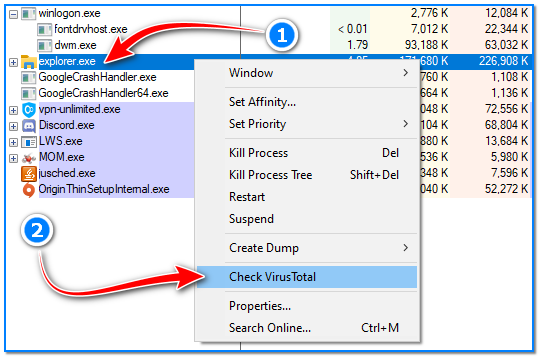
Submit process hashes directly to VirusTotal from the context menu. Results appear as a detection ratio column, so you can spot flagged binaries without leaving the tool. Unlike Windows Task Manager, this gives you real malware detection data.
Color-Coded Process Types
Processes are colored by type: pink for Windows services, purple for packed/compressed images, teal for .NET processes, green for newly started, red for recently terminated. You can read system state at a glance.
Replace Windows Task Manager
Process Explorer can register itself as the default Task Manager. After that, pressing Ctrl+Shift+Esc or right-clicking the taskbar opens Process Explorer instead. You get full process detail, thread stacks, handle counts, and DLL lists right where Task Manager would normally appear. System Informer (formerly Process Hacker) is the closest open-source alternative, but Process Explorer has the advantage of being a first-party Microsoft tool.
Suspend and Resume Processes
Temporarily freeze any process without killing it. Useful when an application is consuming too many resources and you need to free up CPU or disk I/O while you investigate.
DLL and Handle Inspection
The lower pane shows every loaded DLL and memory-mapped file for the selected process (DLL mode), or every open handle including files, registry keys, and mutexes (handle mode). Toggle between the two with a single click.
Thread Stack Analysis
Double-click any process and switch to the Threads tab to see per-thread CPU usage and full call stacks. Developers use this to diagnose hangs and deadlocks without attaching a debugger.
System Information Dashboard
Press Ctrl+I to open a real-time dashboard with CPU history per core, physical memory commit charge, I/O throughput, and GPU usage. The graphs update live and help you pinpoint performance bottlenecks.
Portable – No Installation
Process Explorer is a standalone executable. Extract the ZIP, run procexp64.exe, and it works. No installer, no registry entries, no admin rights required for basic use. Carry it on a USB drive for on-site troubleshooting.
Part of the Microsoft Sysinternals suite, trusted by IT professionals worldwide since 1996.
System Requirements
Process Explorer is a portable, lightweight utility. It runs directly from the extracted ZIP file with no installation required.
| Component | Minimum | Recommended |
|---|---|---|
| Operating System | Windows 11 (any edition) | Windows 11 22H2 or newer |
| Server OS | Windows Server 2016 | Windows Server 2022 |
| Processor | 1 GHz x86 or x64 CPU | Modern multi-core processor (Intel/AMD x64) |
| RAM | 512 MB available | 2 GB or more (especially on systems with 200+ processes) |
| Disk Space | 10 MB free (3.3 MB ZIP archive + extracted files) | 50 MB free (includes space for symbol caching) |
| Display | 1024 x 768 resolution | 1920 x 1080 or higher for comfortable process tree viewing |
| Permissions | Standard user (limited features) | Administrator (full access to all process details, handles, and DLLs) |
| Internet | Not required (works fully offline) | Optional, for VirusTotal integration and debug symbol downloads |
Process Explorer v17.1 supports both 32-bit and 64-bit Windows. For the best experience on modern hardware, use procexp64.exe. Check the Download section to grab the latest version.
Download Process Explorer
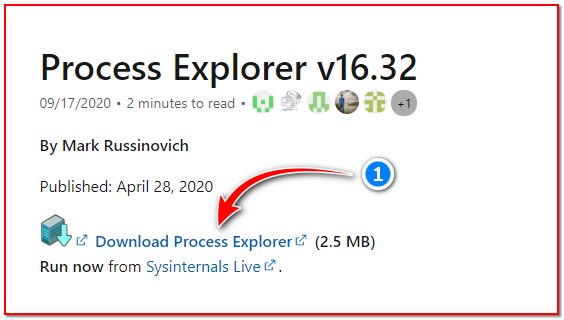
Get the latest version of Process Explorer directly from Microsoft. No installer required – just unzip and run.
Process Explorer v17.1
Sysinternals Live
Run Process Explorer directly from the web without downloading anything. Open the UNC path in File Explorer or a command prompt. Handy when you need to check a machine quickly and don’t want to copy files over.
Run via Sysinternals LiveFull Sysinternals Suite
Process Explorer is part of the Sysinternals Suite, which bundles 70+ Windows utilities into a single download. If you use Process Monitor, Autoruns, or TCPView alongside Process Explorer, grabbing the full suite saves time.
Download Full Suite (45 MB)Process Explorer is a portable application. Extract the ZIP to any folder and run the executable that matches your system architecture. The 64-bit version (procexp64.exe) is the right choice for most modern Windows PCs. To replace Task Manager, open Process Explorer and go to Options > Replace Task Manager.
Screenshots
See Process Explorer in action. Click any image to view it full size.
Screenshots from Process Explorer v17 running on Windows
Getting Started with Process Explorer
From download to diagnosing your first runaway process, here is everything you need to know to get Process Explorer running on your Windows PC.
Downloading Process Explorer
Head to our download section above and grab the ProcessExplorer.zip file. The download is about 3.3 MB, so it should take just a few seconds on any modern connection.
There is only one version of Process Explorer for all Windows architectures. The ZIP archive contains three executables: procexp.exe (32-bit), procexp64.exe (64-bit), and procexp64a.exe (ARM64). If you are running a standard Windows 11 desktop or laptop, procexp64.exe is the one you want. The 32-bit version exists for older machines and certain specialized environments.
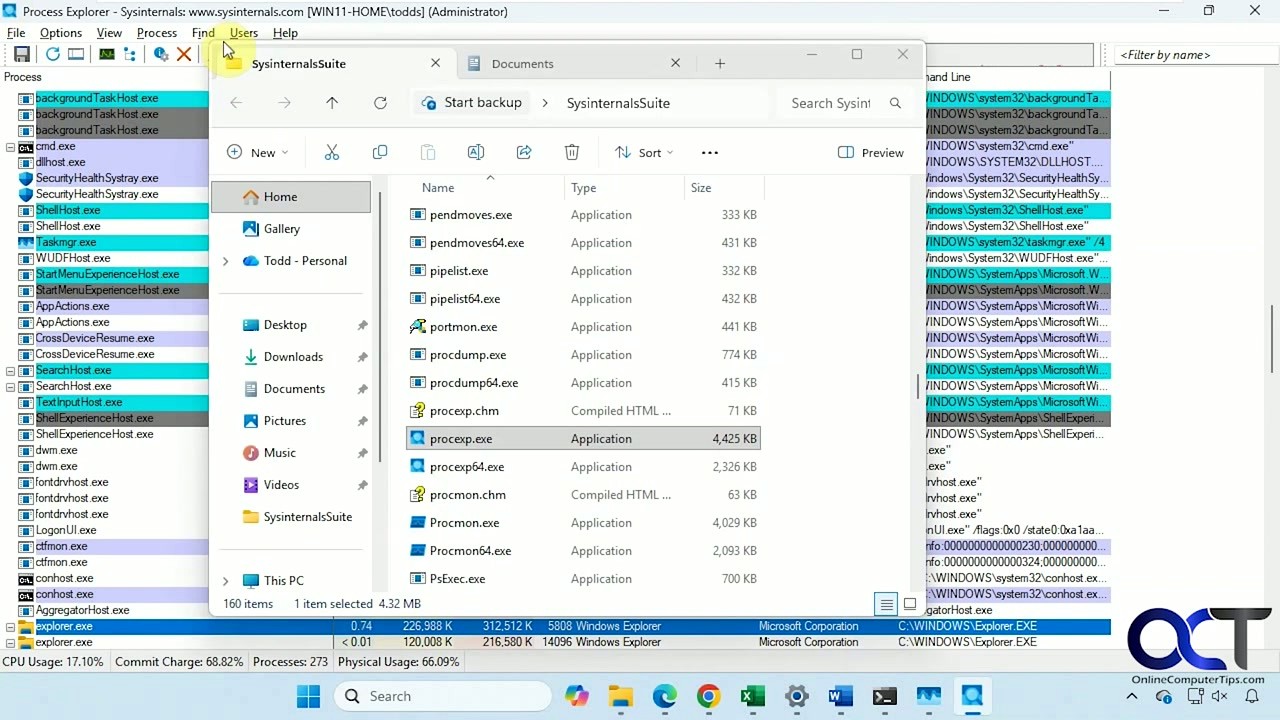
Process Explorer is a portable application. That means there is no installer, no registry changes, and no files scattered across your system. You extract the ZIP, run the .exe, and you are done. Many admins keep it on a USB drive alongside other Sysinternals tools for troubleshooting machines on the go.
live.sysinternals.comtoolsprocexp.exe in File Explorer or a Run dialog. Windows will load it over WebDAV from Microsoft’s servers.
Installation Walkthrough
There is no traditional installer. Extract the ZIP file to any folder you like. A common choice is C:ToolsSysinternalsSuite or just C:ProcessExplorer. Once extracted, right-click procexp64.exe and select Run as administrator. Running as admin gives Process Explorer full visibility into system processes, services, and protected handles that a normal user account cannot access.
- Extract ProcessExplorer.zip to a folder of your choice.
- Right-click procexp64.exe and choose Run as administrator.
- Accept the Sysinternals license agreement on first launch (one-time prompt).
- The main window opens showing all running processes in a tree view.
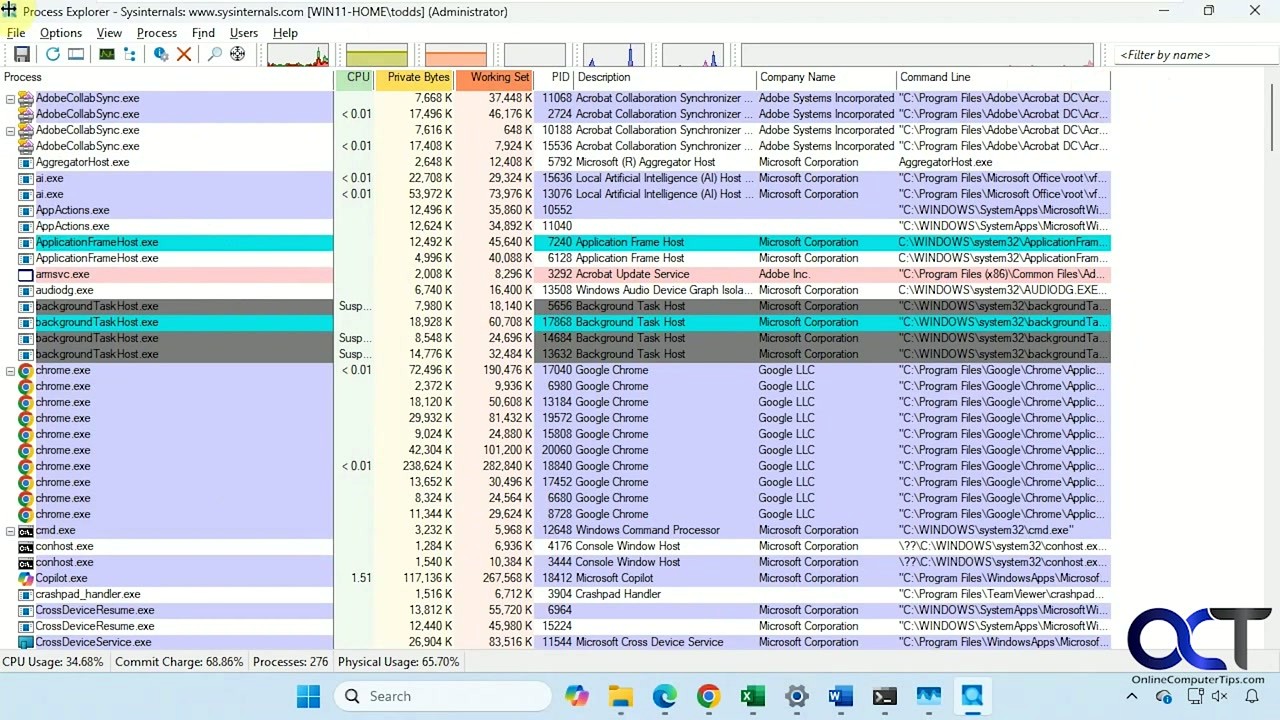
If you want to replace Windows Task Manager entirely, go to Options > Replace Task Manager. After that, pressing Ctrl+Shift+Esc or right-clicking the taskbar and selecting “Task Manager” will open Process Explorer instead. This change writes a single registry entry and can be reversed from the same menu item (it renames to “Restore Task Manager”).
Process Explorer is Windows-only. It supports Windows 11 and Windows Server 2016 or newer. If you need something similar on Linux, htop covers the basics. On macOS, the built-in Activity Monitor is the closest equivalent, though neither match Process Explorer’s handle and DLL inspection capabilities.
Initial Setup and Configuration
Process Explorer works well with its defaults, but a few tweaks make it much more useful. Start with these settings right after your first launch.
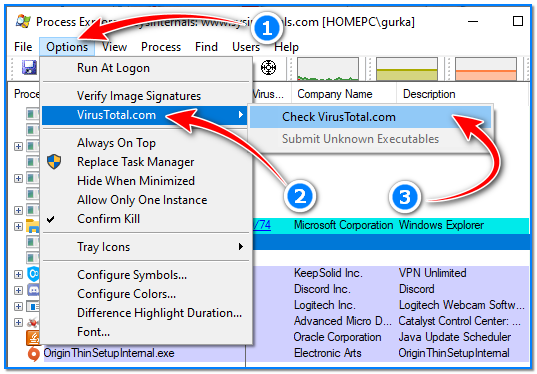
Enable VirusTotal checking: Go to Options > VirusTotal.com > Check VirusTotal.com. Accept the terms of service. This adds a VirusTotal column to the process list that shows how many antivirus engines flag each running executable. A result like “0/76” means clean. Anything above “2/76” is worth investigating. Process Explorer only sends file hashes, not your actual files.
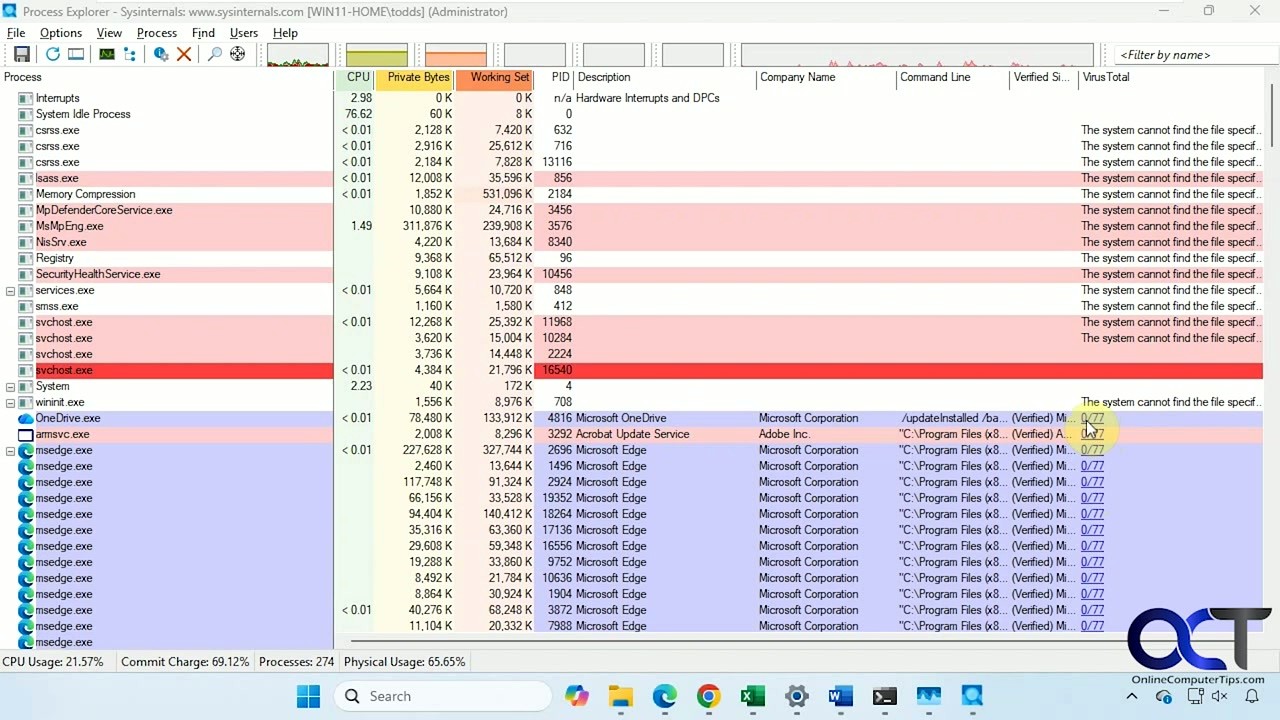
Verify image signatures: Under Options > Verify Image Signatures, toggle this on. Process Explorer will verify whether each process has a valid digital signature from its publisher. Unsigned or improperly signed executables stand out immediately in the “Verified Signer” column.
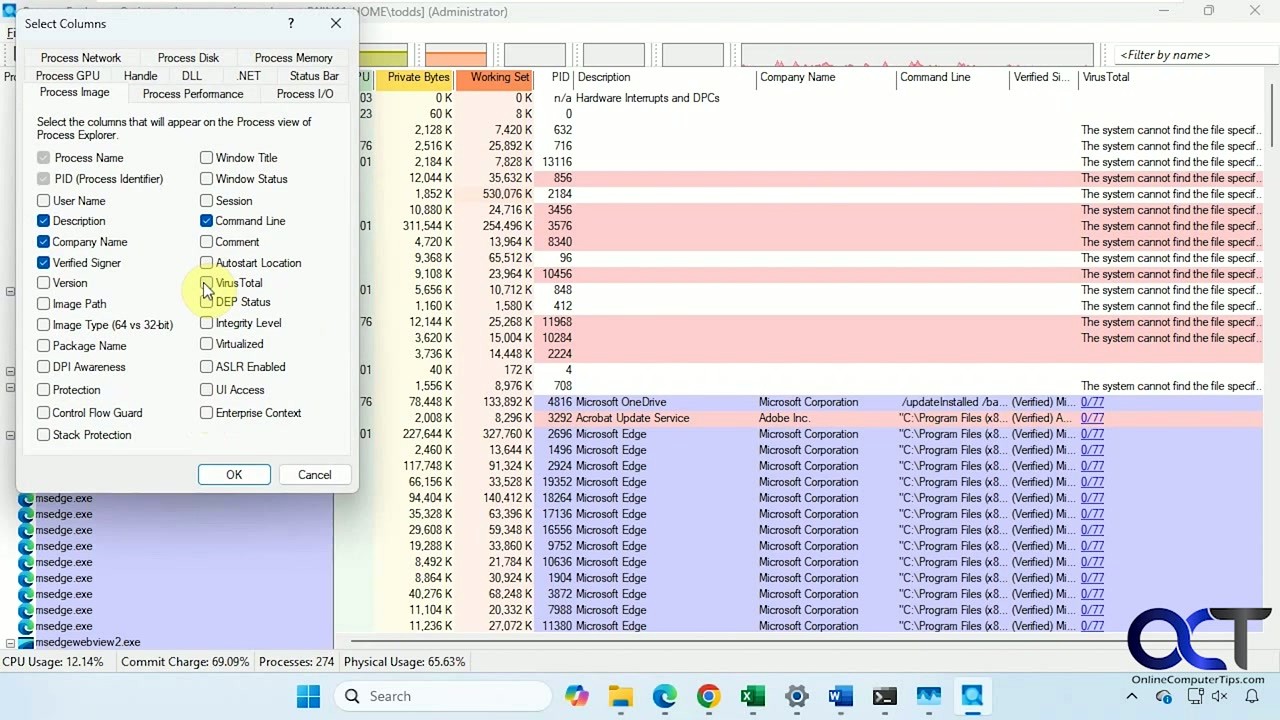
Customize columns: Right-click the column header row and choose Select Columns. Useful additions include “Verified Signer,” “Company Name,” “Command Line” (shows the full path and arguments), and “VirusTotal” if you enabled it above. You can also add “User Name” to see which account each process runs under.
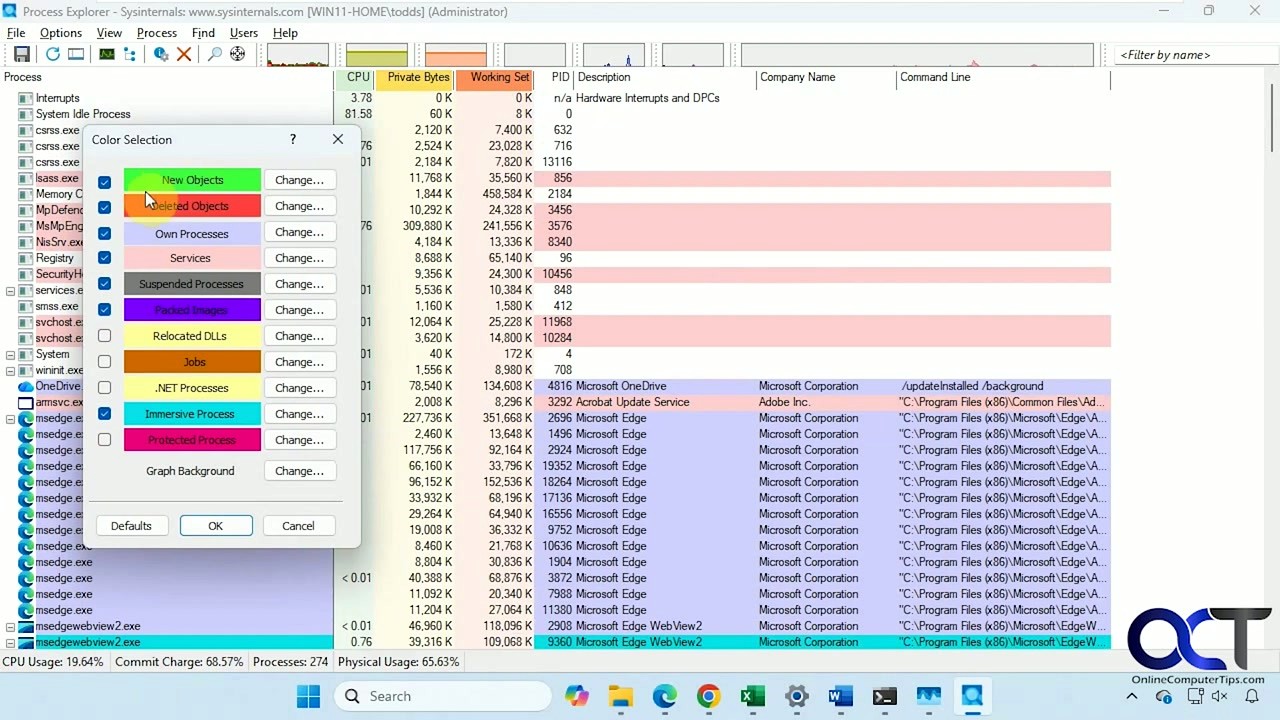
Color configuration: Go to Options > Configure Colors to see (or change) what each highlight color means. By default: green flashes briefly when a new process starts, red when one terminates, pink marks Windows services, purple indicates packed or compressed images, and teal highlights .NET processes. Knowing these colors saves you from wondering why rows keep changing color.
Your First Troubleshooting Session
The single most useful thing Process Explorer does is answer the question: “What process has this file locked?” If you have ever tried to delete a file and Windows told you it was in use by another program, this is how you find out which one.
Press Ctrl+F (or go to Find > Find Handle or DLL). Type part of the filename – say, report.xlsx – and hit Search. Process Explorer scans every open handle and loaded DLL across all processes. Within seconds you will see exactly which process is holding the file. Double-click the result to jump directly to that process in the tree.
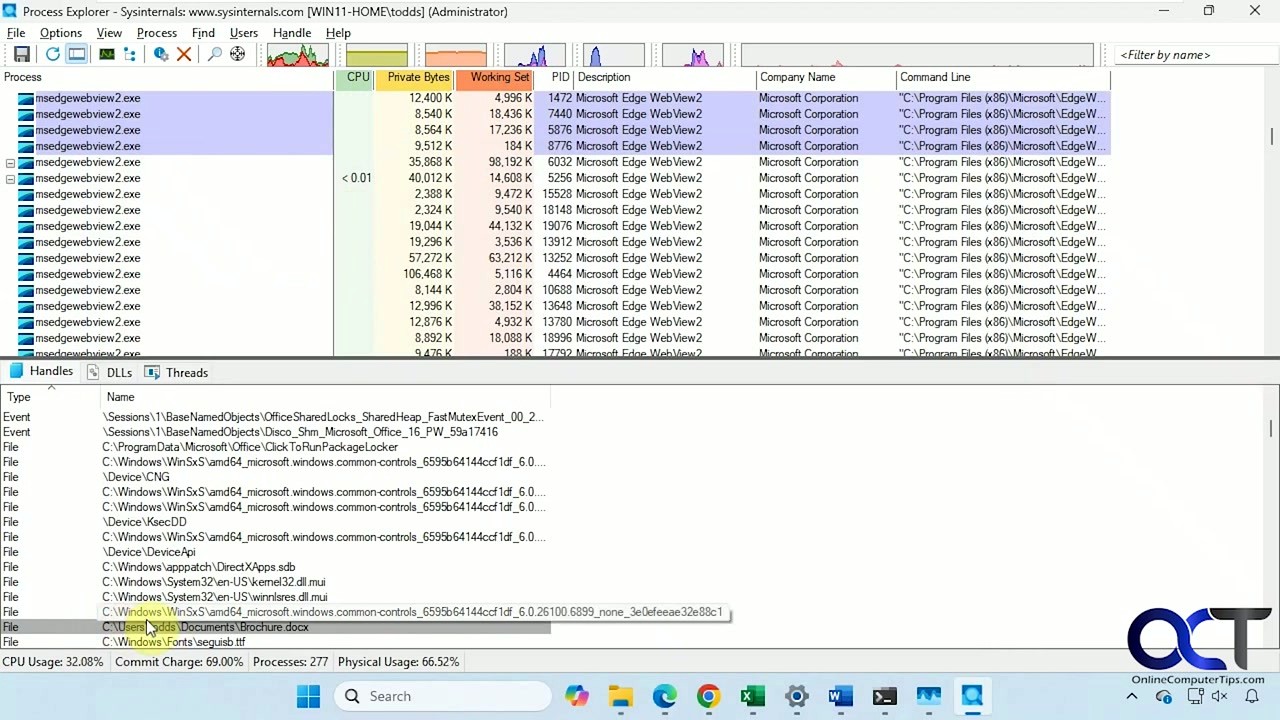
The bottom pane is where the detail lives. Click any process in the top pane, and the bottom pane shows either its open handles or its loaded DLLs, depending on the view mode. Switch between them:
- Ctrl+H for Handle view (files, registry keys, mutexes, events)
- Ctrl+D for DLL view (every DLL the process has loaded)
- Ctrl+L to toggle the bottom pane on or off
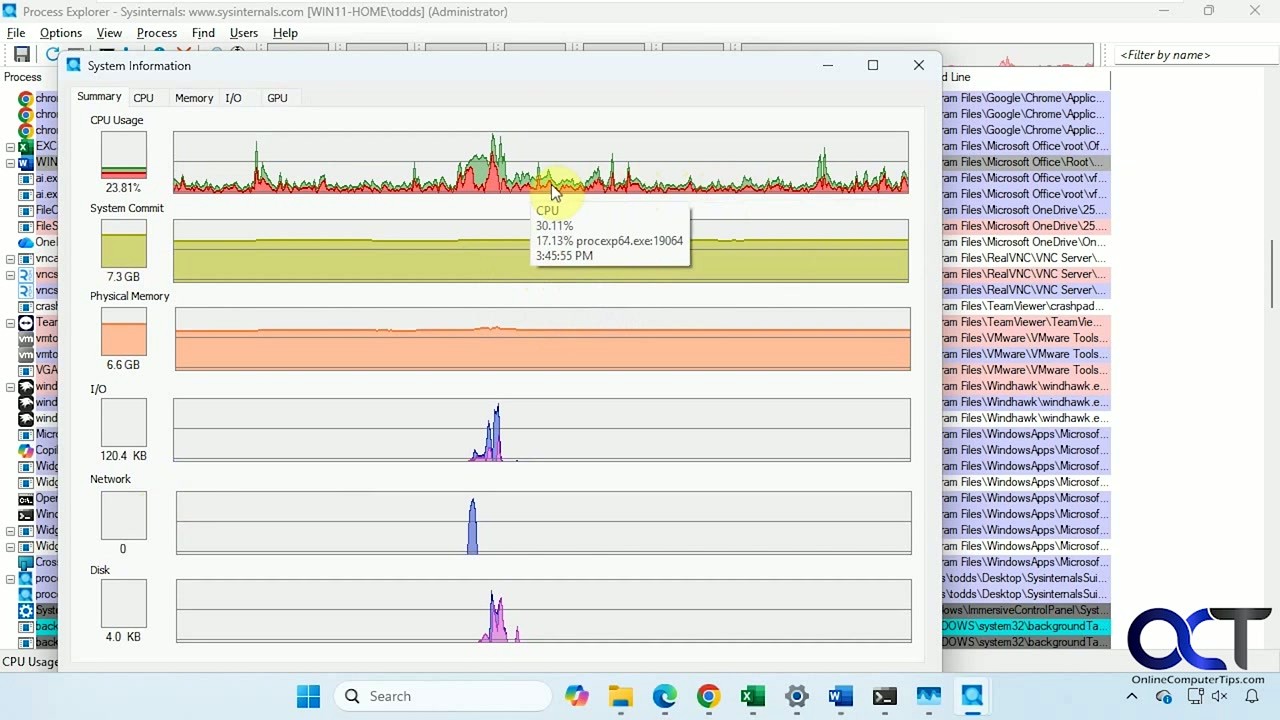
System Information: Press Ctrl+I to open the System Information dialog. This gives you real-time graphs for CPU usage, commit charge (virtual memory), physical memory, and I/O activity. Hover over a CPU spike in the graph and Process Explorer tells you which process caused it and at what time. This alone makes it worth keeping open during performance troubleshooting.
Concrete example: Your laptop fan is spinning hard and you want to find out why. Open Process Explorer, click the CPU column header to sort by CPU usage (highest first). The process eating the most CPU will be at the top. Click it, then check the bottom pane in DLL view to see if it loaded something unexpected. Right-click the process and choose Properties to see its full path, command line arguments, thread stacks, TCP/IP connections, and environment variables. Unlike Task Manager, Process Explorer gives you enough context to actually diagnose the problem rather than just killing the process and hoping for the best.
Keyboard shortcuts reference
| Shortcut | Action |
|---|---|
| Ctrl+F | Find handle or DLL across all processes |
| Ctrl+H | Switch bottom pane to handle view |
| Ctrl+D | Switch bottom pane to DLL view |
| Ctrl+L | Toggle bottom pane visibility |
| Ctrl+I | Open System Information dialog |
| Ctrl+T | Toggle tree view |
| Space | Pause / resume auto-refresh |
| F5 | Manual refresh |
| Del | Kill selected process |
| Shift+Del | Kill entire process tree |
Tips and Best Practices
Always run as administrator. Without elevation, Process Explorer cannot see the full details of system processes, services, or anything running under a different user account. You will see processes listed but with limited information. If you replaced Task Manager (Step 2), make sure the shortcut or registry points to an elevated instance.
Use the crosshair tool. There is a small crosshair icon in the toolbar (or go to Find > Find Window’s Process). Drag it over any visible window on your desktop, and Process Explorer will highlight the process that owns it. This is faster than scrolling through the tree when you just need to identify one application.
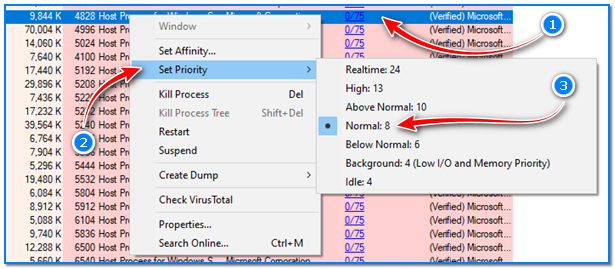
Suspend instead of kill. If a process is misbehaving but you are not sure you want to terminate it, right-click and choose Suspend. This freezes the process without ending it. If your system stabilizes, you have confirmed the culprit. You can then Resume it or Kill it. Unlike Task Manager, which has no equivalent to this, the ability to pause a process is genuinely useful for debugging production issues.
Watch for packed images. Processes highlighted in purple have been flagged as packed or compressed executables. Legitimate software sometimes uses packing (game DRM, for instance), but malware frequently packs binaries to avoid signature-based detection. If you spot an unfamiliar purple process, check its VirusTotal score and verified signer before doing anything else.
Common beginner mistake: killing svchost.exe because it looks suspicious. Multiple instances of svchost.exe are normal – Windows uses it to host groups of services. Killing the wrong one can crash your system. Instead of killing it, right-click, choose Properties, and look at the Services tab to see which services that particular svchost.exe is hosting.
Ready to try it? Download Process Explorer and start diagnosing your Windows system in minutes.
Frequently Asked Questions
Answers to the most common questions about downloading, installing, and using Process Explorer on Windows.
Is Process Explorer safe to download?
Yes, Process Explorer is completely safe. It is developed and published by Microsoft as part of the Sysinternals suite, which has been a trusted collection of Windows system utilities since the mid-1990s. Mark Russinovich, the original author, is now CTO of Microsoft Azure. Microsoft hosts the official download at download.sysinternals.com, and the ZIP archive (3.3 MB) is served directly from Microsoft’s CDN with no bundled adware, toolbars, or third-party installers.
The procexp64.exe binary is digitally signed by Microsoft Corporation. You can verify this yourself by right-clicking the executable, selecting Properties, and checking the Digital Signatures tab. Every major antivirus engine on VirusTotal consistently returns a clean scan for the official release. Process Explorer v17.1 (the current version as of March 2026) carries the same Microsoft signature as previous releases.
- Download only from Microsoft’s official Sysinternals page or from our download section
- Verify the digital signature reads “Microsoft Corporation” before running
- Avoid third-party download sites that may repackage the tool with bundled software
- The ZIP file does not require installation, so there is no installer that could be tampered with
Pro tip: You can run Process Explorer directly from Microsoft’s live network share at \live.sysinternals.comtoolsprocexp.exe without downloading anything. This guarantees you always get the authentic, latest version.
For more details on what the tool does, see our features overview.
Is Process Explorer free from malware and spyware?
Process Explorer contains no malware, spyware, telemetry agents, or data-collection components. As a Microsoft-published utility, it follows Microsoft’s standard software security practices and is signed with a valid Microsoft code-signing certificate. The tool does not phone home, collect user data, or make any network connections on its own unless you explicitly enable the VirusTotal integration (Options > Check VirusTotal.com), which sends process hashes to VirusTotal for scanning.
A common misconception is that antivirus programs sometimes flag Process Explorer. This happens because the tool interacts deeply with Windows internals, reading process memory, enumerating handles, and accessing kernel objects. These behaviors are normal for a process management tool but can trigger heuristic warnings in overly aggressive security software. If you see a detection, it will typically be labeled as “PUA” (Potentially Unwanted Application) or “HackTool,” which are generic labels for any utility that inspects running processes.
- Download the official ZIP from our download section or learn.microsoft.com/sysinternals
- Extract the archive and check the file properties for a Microsoft digital signature
- If your antivirus flags it, add an exception for procexp64.exe rather than disabling your antivirus entirely
- Run VirusTotal scans from within Process Explorer itself to verify any suspicious processes on your system
Pro tip: Process Explorer is actually one of the best tools for detecting malware on your own PC. Enable the VirusTotal column (Options > VirusTotal.com > Check VirusTotal.com) and it will show detection ratios for every running process.
Learn how to set this up in our getting started guide.
Where is the official safe download for Process Explorer?
The official download is hosted at Microsoft’s Sysinternals page: learn.microsoft.com/en-us/sysinternals/downloads/process-explorer. The direct download URL is https://download.sysinternals.com/files/ProcessExplorer.zip, which always serves the latest version. You can also grab it from our download section, which links directly to Microsoft’s official file.
There are three legitimate ways to get Process Explorer. The first is the ZIP download mentioned above, which contains both the 32-bit (procexp.exe) and 64-bit (procexp64.exe) executables. The second is the Sysinternals Live service, where you can access it at \live.sysinternals.comtools through Windows File Explorer. The third option is installing via the Windows Package Manager: run winget install sysinternals from a command prompt, which installs the entire Sysinternals suite.
- Microsoft Sysinternals website — always the latest official release
- Sysinternals Live (\live.sysinternals.comtools) — runs directly, no download needed
- Windows Package Manager (winget) — installs all Sysinternals tools at once
- Microsoft Store — the Sysinternals Suite is also available there
Pro tip: Bookmark the direct download URL (download.sysinternals.com/files/ProcessExplorer.zip). Unlike third-party mirror sites, this link always points to the genuine latest release with no wrappers or bundled software.
See our download section for direct links and file details.
Does Process Explorer work on Windows 11?
Yes, Process Explorer v17.1 fully supports Windows 11, including the latest 24H2 update. Microsoft officially lists the supported client operating systems as “Windows 11 and higher” on the Sysinternals downloads page. It runs natively on both x64 and ARM64 editions of Windows 11.
On Windows 11, Process Explorer works with all the modern security features enabled, including Secure Boot, VBS (Virtualization-Based Security), and Windows Defender. The dark mode that Windows 11 users expect is also available: go to Options > Theme and select “Dark” to match your system appearance. The tool integrates with the Windows 11 process architecture the same way it does on older versions, showing full process trees, handles, DLLs, and thread stacks.
- Supports Windows 11 Home, Pro, Enterprise, and Education editions
- Runs on both x64 and ARM64 processors (Surface Pro X, Snapdragon laptops)
- Compatible with Windows 11 22H2, 23H2, and 24H2 builds
- Dark theme available to match Windows 11 system settings
Pro tip: On Windows 11, right-click the taskbar and select “Task Manager,” then use Options > Replace Task Manager in Process Explorer to make it your default. Press Ctrl+Shift+Esc and Process Explorer will open instead of the built-in Task Manager.
Check the full system requirements for hardware specifics.
What are the minimum system requirements for Process Explorer?
Process Explorer has very low system requirements. It runs on any Windows 11 or newer system (client) or Windows Server 2016 and newer (server). The entire ZIP download is only 3.3 MB, and the extracted executables use around 15-30 MB of RAM depending on the number of processes on your machine.
Because Process Explorer is a portable tool that reads system data in real time, the main limiting factor is the number of active processes and handles on the system. On a typical desktop with 100-200 processes, it launches in under a second and uses minimal CPU. On busy servers with 500+ processes and tens of thousands of handles, initial loading takes a few seconds longer, especially if you have symbol loading or VirusTotal checking enabled.
- OS: Windows 11 or higher (client), Windows Server 2016 or higher (server)
- CPU: Any x86, x64, or ARM64 processor
- RAM: 64 MB free (the tool itself uses 15-30 MB)
- Disk: 5 MB free space (for the extracted files)
- No .NET Framework or runtime dependencies required
Pro tip: If Process Explorer is slow on a server with many processes, go to Options > Configure Symbols and disable symbol loading. Also uncheck Options > Verify Image Signatures. Both features query external servers and can significantly slow the initial load.
View the complete requirements table in our system requirements section.
Does Process Explorer work on macOS or Linux?
No, Process Explorer is a Windows-only tool. It depends on Windows kernel APIs (NtQuerySystemInformation, NtQueryObject, and other native system calls) that do not exist on macOS or Linux. There is no official macOS or Linux port, and running it through Wine or compatibility layers does not work because these kernel-level APIs cannot be emulated.
If you need similar process inspection capabilities on other operating systems, there are strong alternatives. On macOS, Activity Monitor is built in, and htop is available through Homebrew for a terminal-based view. On Linux, htop, atop, and the /proc filesystem provide detailed process information. For a GUI experience on Linux, GNOME System Monitor or KSysGuard (KDE) offer process trees and resource graphs.
- macOS: Activity Monitor (built-in), htop (brew install htop), or iStat Menus
- Linux: htop, atop, GNOME System Monitor, or KSysGuard
- Cross-platform: Glances (Python-based, runs on all three OSes)
Pro tip: If you manage both Windows and Linux servers, consider using Glances for Linux monitoring and Process Explorer for Windows. They complement each other well for mixed-OS environments.
See our features section for everything Process Explorer offers on Windows.
Is Process Explorer completely free to download and use?
Yes, Process Explorer is 100% free. There is no paid version, no premium tier, no feature-gated licensing, and no subscription. Microsoft distributes it at no cost as part of the Sysinternals suite, and this has been the case since before Microsoft acquired Sysinternals from Winternals Software in 2006.
The license is the Microsoft Sysinternals EULA, which permits free use for both personal and commercial purposes. You can run it on as many machines as you need, including production servers, development workstations, and client PCs. IT departments and managed service providers regularly deploy it across their entire fleet without licensing concerns. There is no registration, no account creation, and no serial key required.
- Free for personal, educational, and commercial use
- No registration or account needed
- Licensed under the Microsoft Sysinternals EULA
- Unlimited installations across any number of machines
- No ads, no upsells, no feature restrictions
Pro tip: The entire Sysinternals suite (70+ tools including Process Monitor, Autoruns, TCPView, and PsExec) is also free. If you find Process Explorer useful, download the full suite from the same page.
Grab your free copy from our download section.
Can I use Process Explorer in a business or enterprise environment?
Yes, Process Explorer is licensed for commercial and enterprise use at no cost. The Microsoft Sysinternals EULA explicitly allows use in business environments, and many IT teams consider it a standard part of their troubleshooting toolkit alongside other Sysinternals utilities like Process Monitor and Autoruns.
In enterprise environments, the most common deployment method is through a shared network drive or SCCM/Intune package. Since Process Explorer is portable (no installation required), you can place procexp64.exe on a network share and run it directly from there. Some organizations use the Sysinternals Live path (\live.sysinternals.comtools) so that staff always access the latest version without any internal packaging work. For locked-down environments, you may need to whitelist the executable in your endpoint protection software, since its deep system inspection can trigger heuristic alerts.
- Place procexp64.exe on a shared network drive accessible to your IT team
- If using endpoint protection, create an exclusion for the Sysinternals executables
- For automated deployment, use
winget install sysinternals --scope machine - Consider running it as administrator for full visibility into all processes and handles
Pro tip: Set the /accepteula command-line flag when deploying via scripts: procexp64.exe /accepteula. This skips the EULA dialog on first run, which is important for unattended or remote deployments.
Learn more about setup options in our getting started guide.
How do I download and install Process Explorer step by step?
Process Explorer does not have a traditional installer. It is a portable application: you download a ZIP file, extract it, and run the executable directly. The whole process takes about 30 seconds.
The ZIP archive (ProcessExplorer.zip, 3.3 MB) contains three files: procexp.exe (32-bit), procexp64.exe (64-bit), and a help file (procexp.chm). On any modern Windows 11 system, you want procexp64.exe. There is no setup wizard, no “Next, Next, Finish” flow, and nothing gets written to the Windows Registry unless you choose to replace Task Manager.
- Go to our download section and click “Download Process Explorer”
- Save the ProcessExplorer.zip file to a location you can find easily (Downloads folder works fine)
- Right-click the ZIP file and select “Extract All” (or use 7-Zip, WinRAR, NanaZip)
- Open the extracted folder and double-click procexp64.exe
- Accept the Sysinternals EULA on first launch
- If Windows SmartScreen warns you, click “More info” then “Run anyway” — this happens because the file was downloaded from the internet
Pro tip: Create a shortcut to procexp64.exe on your desktop or pin it to the taskbar. For even faster access, move the extracted files to C:ToolsProcessExplorer and add that folder to your system PATH, so you can type “procexp64” from any command prompt.
For detailed first-run configuration, see our getting started guide.
Process Explorer portable vs installer – which version should I choose?
There is only one version of Process Explorer, and it is portable. Microsoft does not provide an installer (MSI or EXE setup) for this tool. The download is always a ZIP archive containing standalone executables that run without any installation. This is by design: system administrators need to be able to run diagnostic tools on machines without installing software.
The ZIP contains both procexp.exe (32-bit, about 2.1 MB) and procexp64.exe (64-bit, about 2.4 MB). On any 64-bit Windows system (which covers virtually all computers sold since 2010), use procexp64.exe. The 32-bit version exists for legacy systems and some edge cases where you need to inspect 32-bit WoW64 processes specifically. If you just double-click procexp.exe on a 64-bit system, it will automatically launch the 64-bit version anyway.
- No installer exists — Process Explorer is inherently portable
- Use procexp64.exe on 64-bit Windows (which is almost every modern PC)
- Use procexp.exe only on 32-bit Windows or when specifically debugging 32-bit issues
- You can carry it on a USB drive and run it on any Windows PC without admin rights (though admin rights give you fuller process visibility)
Pro tip: Keep a copy of Process Explorer on a USB drive alongside other Sysinternals tools (Autoruns, Process Monitor, TCPView). This “IT toolkit” USB drive is extremely useful when you need to troubleshoot a machine that does not have these tools pre-installed.
Download the portable ZIP from our download section.
How to fix Process Explorer not opening, crashing, or freezing?
If Process Explorer hangs on startup, the most common cause is symbol loading or image signature verification connecting to external servers. Both features make network requests during initialization, and on machines with slow or restricted internet access, this can cause the application to appear frozen for 30-60 seconds.
This issue is particularly common on Windows servers with hundreds of processes and strict firewall rules. Microsoft’s own support forums have multiple threads about Process Explorer becoming unresponsive on server environments where mssecures.vo.msecnd.net (the symbol server) is blocked. The fix is straightforward: either allow that domain through your firewall or disable the features that trigger network calls.
- Try running as Administrator: right-click procexp64.exe and select “Run as administrator”
- If it opens but freezes, go to Options > Verify Image Signatures and uncheck it
- Go to Options > Configure Symbols and clear the symbol path, or uncheck “Load symbols”
- If you get a DPI scaling issue (blurry or misaligned UI), right-click the exe > Properties > Compatibility > Change high DPI settings > set “Override high DPI scaling behavior” to “Application”
- If Process Explorer crashes immediately, download a fresh copy from our download section to rule out a corrupted file
Pro tip: Launch Process Explorer from the command line with procexp64.exe /accepteula /t to skip the EULA and start minimized to the system tray. If it hangs, you can at least still use your desktop while it loads in the background.
See our getting started guide for recommended initial configuration.
Why does Process Explorer show different CPU usage than Task Manager?
This is one of the most asked questions about Process Explorer, and the answer is that the two tools measure CPU usage differently. Task Manager calculates CPU as a percentage of total logical processors, while Process Explorer (by default) shows CPU usage as a percentage of one logical processor. On a system with 8 cores and 16 threads, a single-threaded process using one core fully would show as 6.25% in Task Manager but 100% in Process Explorer.
You can change this behavior in Process Explorer by going to View > Show Fractional CPU and ensuring Options > “Show CPU usage as a percentage of total CPU” is configured the way you prefer. Some users on Reddit have reported seeing 400% or higher CPU figures for multi-threaded processes when per-CPU mode is enabled, which is expected behavior on multi-core machines. Microsoft’s own documentation confirms this difference in calculation methodology.
- Task Manager: CPU % = (process time / total CPU capacity across all cores)
- Process Explorer default: CPU % = (process time / single core capacity)
- To match Task Manager, check View > Show Fractional CPU in Process Explorer
- The system-wide CPU graph in Process Explorer’s System Information window always shows total system utilization regardless of per-process settings
Pro tip: Press Ctrl+I in Process Explorer to open the System Information window. The CPU tab shows real-time per-core usage graphs, which is far more useful than the single aggregate percentage Task Manager displays.
Explore more Process Explorer capabilities in our features section.
Process Explorer stopped working after a Windows update – how to fix?
When Process Explorer breaks after a Windows update, it is almost always because you are running an old version. Microsoft updates Process Explorer to stay compatible with new Windows builds, and older versions may fail to read certain kernel structures that changed in the update. The fix is to download the latest version.
This happens more frequently after major Windows feature updates (like going from 23H2 to 24H2) than after monthly cumulative updates. Reddit users have reported issues specifically with Process Explorer not showing GPU usage, not displaying process details for system processes, or crashing on launch after updating Windows. In each case, downloading the latest Process Explorer release resolved the problem.
- Visit our download section and grab the latest version (currently v17.1)
- Extract the new ZIP to the same folder where you keep Process Explorer (overwrite the old files)
- Launch the new version and accept the EULA if prompted
- If the issue persists, try running it as Administrator (some Windows updates change security policies)
- Check the Sysinternals blog for any known compatibility notes with your specific Windows build
Pro tip: Process Explorer does not have an auto-update feature. Bookmark the Sysinternals RSS feed or check the official page monthly. Major Windows updates usually coincide with a new Sysinternals release within a few weeks.
See our system requirements for supported Windows versions.
How to update Process Explorer to the latest version?
Process Explorer does not include a built-in update mechanism. To update, download the latest ZIP from the official source and replace your existing files. The current version is v17.1, released on March 5, 2026.
Since the tool is portable, updating is just a file replacement. You do not lose any settings because Process Explorer stores its configuration in the Windows Registry under HKCUSoftwareSysinternalsProcess Explorer, not in the executable’s folder. After replacing the files, your column layouts, color preferences, and VirusTotal settings will still be there. If you installed it via winget, you can update with winget upgrade sysinternals from an elevated command prompt.
- Check your current version: open Process Explorer, click Help > About Process Explorer
- Download the latest version from our download section
- Close Process Explorer if it is running
- Extract the new ZIP over the old files, replacing procexp.exe and procexp64.exe
- Launch the new version — all your previous settings are preserved
Pro tip: If you manage multiple machines, use the Sysinternals Live path instead of local copies. Running \live.sysinternals.comtoolsprocexp64.exe always gets the latest version automatically with zero maintenance on your end.
Learn more about initial setup in our getting started guide.
What is new in the latest version of Process Explorer?
Process Explorer v17.1, released March 5, 2026, is the latest version. Sysinternals updates typically include bug fixes, Windows compatibility improvements, and occasional new features. Version 17.0 (released in October 2022) was a major update that added dark theme support, a redesigned interface, and improved symbol resolution.
Recent improvements across the v17.x line include better ARM64 support for Windows on ARM devices, enhanced VirusTotal integration, improved DPI scaling for high-resolution displays, and faster handle enumeration on systems with large numbers of open handles. The dark theme introduced in v17.0 was a frequently requested feature, especially from Reddit users who were running dark mode system-wide on Windows 11. Earlier significant additions include GPU column support (added in v16.x) and the VirusTotal integration (added in v16.0).
- v17.1 (March 2026): Bug fixes, compatibility updates for Windows 11 24H2
- v17.0 (October 2022): Dark theme, UI refresh, ARM64 improvements
- v16.43: Enhanced DPI scaling, performance fixes for large process lists
- v16.0: VirusTotal integration for checking processes against malware databases
Pro tip: Follow the Sysinternals blog (techcommunity.microsoft.com/t5/sysinternals-blog) to get notified about new releases. Mark Russinovich also posts updates on X (Twitter) at @markrussinovich.
Download the latest version from our download section.
Process Explorer vs Task Manager – what is the difference and which is better?
Process Explorer shows far more detail than Windows Task Manager. The built-in Task Manager is fine for quick overviews (killing a frozen app, checking memory usage), but Process Explorer is the tool you reach for when you need to understand what a process is actually doing: which files it has open, which DLLs it has loaded, what registry keys it is accessing, and which network connections it holds.
The biggest practical differences come down to three things. First, Process Explorer shows a hierarchical process tree that reveals parent-child relationships, so you can see that chrome.exe spawned 15 child processes and trace them all. Task Manager shows a flat list. Second, Process Explorer’s “Find Handle or DLL” search (Ctrl+F) lets you type a file path and instantly find which process has that file locked, something Task Manager cannot do at all. Third, Process Explorer has integrated VirusTotal scanning that checks every running process against 70+ antivirus engines with one click.
- Process tree: Process Explorer shows parent-child hierarchy; Task Manager shows a flat list
- Handle/DLL search: Only Process Explorer can find which process locked a file
- VirusTotal: Process Explorer scans processes against malware databases; Task Manager cannot
- Color coding: Process Explorer uses colors to identify services (pink), packed images (purple), .NET processes, and new/terminated processes (green/red)
- Task Manager advantage: comes pre-installed, no download needed, simpler UI for basic tasks
Pro tip: You do not have to choose one or the other. Many power users replace Task Manager with Process Explorer (Options > Replace Task Manager) so that Ctrl+Shift+Esc opens Process Explorer by default, while still having Task Manager available through taskmgr.exe if needed.
See our features overview for the complete list of Process Explorer capabilities.
Is Process Explorer better than Process Hacker (System Informer)?
Both are excellent tools, and the best choice depends on what you need. Process Explorer is a Microsoft product with guaranteed Windows compatibility and a clean trust reputation. Process Hacker (now rebranded as System Informer) is an open-source alternative that offers some features Process Explorer does not, like built-in network monitoring, service management, and memory string extraction.
Process Explorer’s main advantages are its Microsoft signature (less likely to be blocked by enterprise security software), the VirusTotal integration, and its tight integration with other Sysinternals tools. Process Hacker’s advantages are its open-source codebase, more advanced memory inspection, disk activity monitoring, and the ability to modify running services. Many sysadmins and security researchers on Reddit report using both: Process Explorer for day-to-day process management and Process Hacker for deeper forensic analysis and malware investigation.
- Process Explorer: Microsoft-signed, VirusTotal integration, trusted by enterprise IT
- Process Hacker: Open-source, network tab, memory editing, service management
- Both are free and portable
- Process Hacker is more likely to be flagged by antivirus due to its memory inspection capabilities
- Process Explorer gets regular updates tied to Windows releases; Process Hacker updates depend on the community
Pro tip: If your workplace blocks Process Hacker due to its “HackTool” classification in some antivirus products, Process Explorer is the safe bet that IT departments are unlikely to object to. It carries a Microsoft signature, which effectively bypasses most enterprise security policies.
Explore what Process Explorer offers in our features section.
How do I find which process is locking a file or folder?
Use Process Explorer’s “Find Handle or DLL” search. Press Ctrl+F (or go to Find > Find Handle or DLL), type the file name or partial path, and hit Search. Process Explorer will scan all open handles across every running process and show you exactly which process has that file or folder open. This is the single most popular reason people download Process Explorer.
The typical scenario: you try to delete, rename, or move a file and Windows says “The action can’t be completed because the file is open in another program.” Task Manager does not tell you which program. Process Explorer does. Once you find the process in the search results, you can right-click it and either kill the process or close just the handle. Be careful with closing handles on system processes though, as this can cause instability. Killing the process is usually the safer option.
- Open Process Explorer as Administrator (for visibility into system processes)
- Press Ctrl+F to open the Find Handle or DLL dialog
- Type the file name (e.g., “report.xlsx”) or full path (e.g., “D:Projectsbuild”)
- Click Search and wait a few seconds
- Right-click the offending process in the results and choose “Kill Process” or “Close Handle”
Pro tip: You can also use the crosshair icon in the Process Explorer toolbar. Drag the crosshair over any open window, and Process Explorer will highlight the process that owns that window. This is useful when you can see the program but do not know its process name.
Read more about this and other features in our features section.
How to use Process Explorer to detect malware on my PC?
Process Explorer can help you spot suspicious processes through its VirusTotal integration and process property inspection. Enable the VirusTotal column by going to Options > VirusTotal.com > Check VirusTotal.com. After agreeing to the terms, Process Explorer will submit hashes of every running process to VirusTotal and display the detection ratio (e.g., “0/73” means clean, “15/73” means 15 antivirus engines flagged it).
Beyond VirusTotal, Process Explorer gives you several visual cues for suspicious activity. Processes with no company name, no icon, or a generic description are worth investigating. Processes with unusually high handle counts, processes hiding in deep tree hierarchies under svchost.exe, and processes with misspelled names (e.g., “scvhost.exe” instead of “svchost.exe”) are classic indicators of malware. The color coding also helps: packed or compressed executables show up in purple, which can indicate either legitimate copy protection or malicious packing to avoid detection.
- Open Process Explorer as Administrator
- Enable VirusTotal: Options > VirusTotal.com > Check VirusTotal.com
- Wait for all processes to be scanned (30-60 seconds on a typical system)
- Sort by the VirusTotal column and look for any non-zero detection ratios
- Right-click suspicious processes and select Properties to inspect the image path, command line arguments, and digital signature
- Check the TCP/IP tab in process properties to see if the process is making unexpected network connections
Pro tip: Look at the “Verified Signer” column. Legitimate Windows processes are signed by “Microsoft Windows” or “Microsoft Corporation.” A process claiming to be a Windows system file but showing “Unable to verify” or a different signer is a major red flag.
Get started with Process Explorer using our step-by-step guide.
Still have questions? Download Process Explorer and try it yourself — it is free and portable.